

Product updates
Complete guide to depositing and withdrawing from your Bitget TradFi (MT5) account
2025-12-12 05:110112
After you successfully activate your Bitget TradFi (MT5) account, the platform will create a dedicated account for MT5 trading, ensuring both security and operational independence.
It is important to note that you cannot deposit funds into your MT5 account or withdraw funds from it directly. However, you can transfer funds between your funding account or spot account and your TradFi (MT5) account through the dedicated TradFi asset page on Bitget.
Bitget TradFi (MT5) supports only USDT as margin. This means you can transfer only USDT into or out of your TradFi (MT5) account.
How to deposit into your Bitget TradFi MT5 account
Step 1: Ensure you have sufficient balance in your funding or spot account
To transfer funds from your classic account or unified trading account to MT5, make sure you have available USDT in either your spot account or funding account.
Step 2: Go to the TradFi (MT5) asset page
After depositing USDT into your funding account, log in to Bitget and navigate to the TradFi (MT5) asset page. On this page, you'll see a Transfer In button—click it to initiate the deposit process.
Step 3: Enter the deposit amount and confirm
In the pop-up transfer window, enter the amount of USDT you wish to transfer to your TradFi (MT5) account. To transfer all available USDT from your funding account, click the All button. After reviewing the amount, click Confirm to complete the transfer.
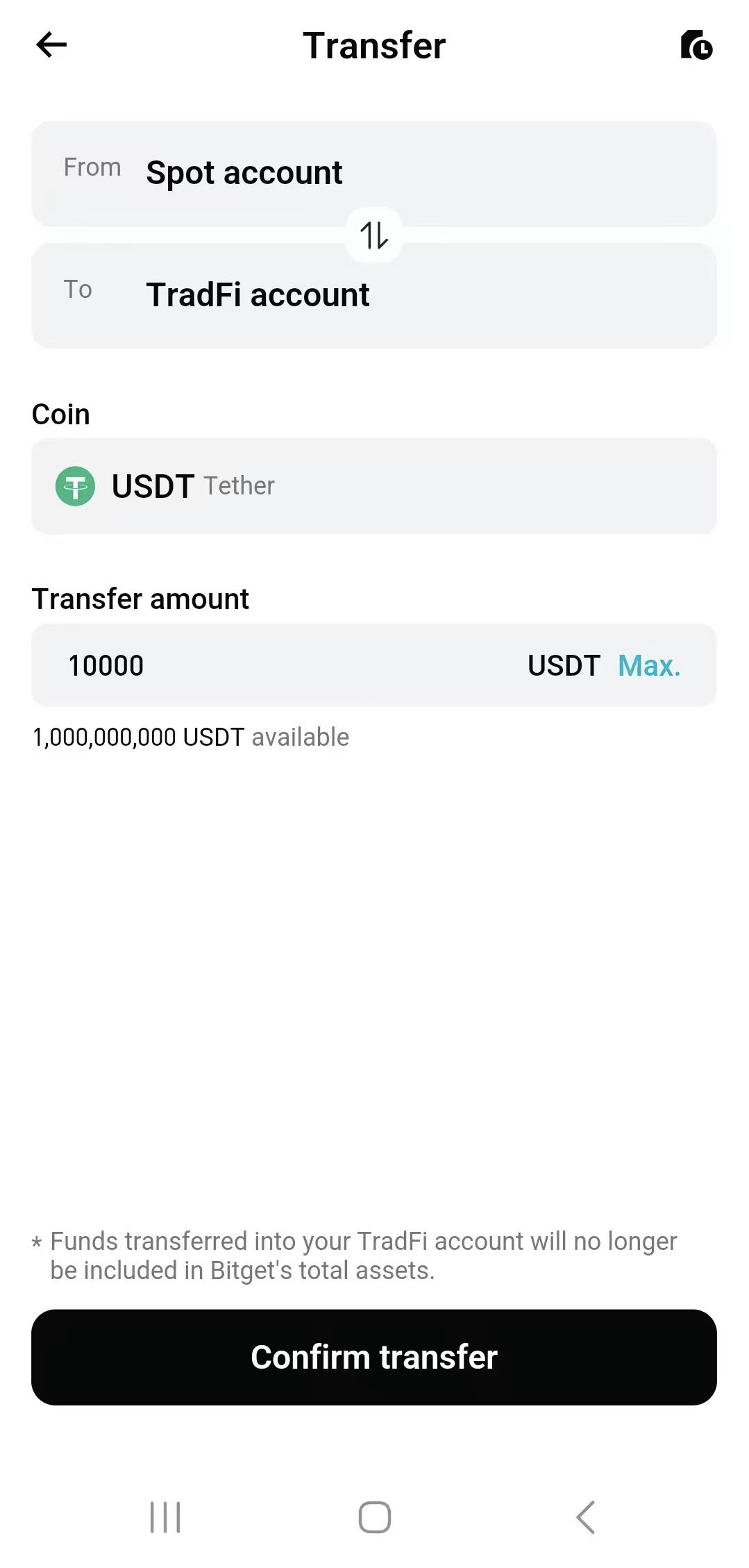
Once these steps are completed, your funds will be transferred to your TradFi (MT5) account. You can view the details in your transaction history or check your updated balance anytime on the TradFi (MT5) asset page.
How to withdraw from your Bitget TradFi (MT5) account
Step 1: Go to the MT5 asset page
When you need to withdraw funds from your TradFi (MT5) account, log in to Bitget and navigate to the MT5 asset page. On this page, you'll see a Transfer Out button—click it to initiate the withdrawal process.
Step 2: Enter the withdrawal amount and confirm
In the pop-up window, enter the amount of USDT you want to transfer from your MT5 account. To transfer out all available USDT from your MT5 account to the funding account, click the All button. After reviewing the amount, click Confirm to complete the transfer.
Step 3: Review the withdrawal result
Once the transfer is complete, your funds will be returned to your funding account. You can view the details in your transaction history or check your latest balance on the funding account page.
This step-by-step guide should give you a clear understanding of how to deposit and withdraw funds from your Bitget TradFi (MT5) account. If you encounter any issues, please contact our customer service team—we're here to help.
Join Bitget, the World's Leading Crypto Exchange and Web3 Company
Share